|
How to solve most problems with video codecs
Video and audio can be compressed with different methods and this compressed data can be stored
in a file in a number of ways. Software components that do the compression and
decompression are called codecs.
There is no way for a single application to contain its own versions of all possible codecs,
for this reason some applications (like VLC and SUPER) contain just a fixed number of built-in
codecs and thus cannot decompress data made with other codecs, and some applications (like
many media players and also Video Enhancer) use codecs installed in the system.
When Video Enhancer processes a file it involves several steps:
- File is read and splitted to separate video and audio streams - by a splitter (demuxer) chosen
for this kind of file. Different splitters are used for different types of files.
- Video stream is decoded by a codec chosen for this kind of video. Different codecs are used for
different types of video.
- Decompressed video is processed by Super-Resolution and/or video filters.
- Processed video is compressed using a video codec of your choice.
- If you selected some audio codec, then first audio stream from the splitter is decompressed
with an audio codec chosen for this type of audio.
- Then decompressed audio is compressed by an audio codec of your choice.
- Compressed video and audio are written to an AVI file using Video Enhancer's writer.
Of these steps only Super-Resolution (3) and AVI writer (7) are internal parts of Video Enhancer.
All the splitters (1), decoders (2 & 5) and encoders (4 & 6) are components already installed in
your system and chosen by you and Video Enhancer.
For this reason it is essential to have all proper codecs to be set up correctly. Problems with
codecs may lead to Video Enhahcer's inability to process a file and also to crashes.
This tutorial shows how to get and set up free video codecs that will solve most of your problems
with most multimedia applications including Video Enhancer.
We recommend K-Lite Mega Codec Pack full or mega version for easy installation of most popular
codecs.
Download K-Lite Mega Codec Pack
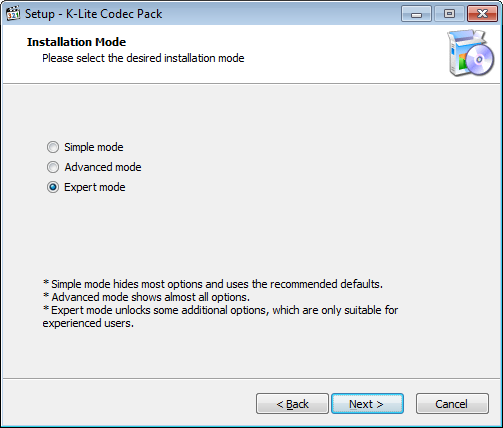
Chose "Expert mode".
The following settings are recommended for optimum support in Video Enhancer.
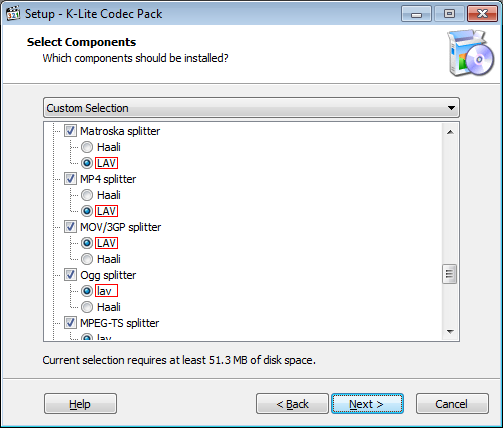
Matroska splitter, select LAV.
MP4 and MOV/3GP splitter, select LAV.
Ogg splitter, select lav.
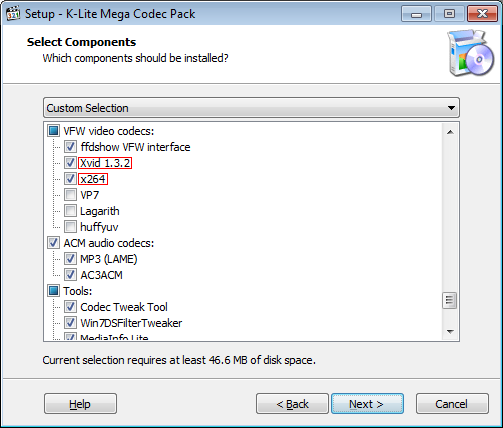
VFW video codecs, select Xvid and x264.
This will install codecs which will let you compress your video to XviD or x264.
We recommend x264 for best quality, but XviD may be more compatible.
Use the default installation settings for the other options.
The reason to why Haali has to be unselected is because we have found out that it does not work very well when used to serve direct audio with file formats such as MP4.
Tests has confirmed however that LAV splitter works better.
Complete the rest of the K-Lite Mega Codec Pack installation by clicking Next.
Recommended x264 settings
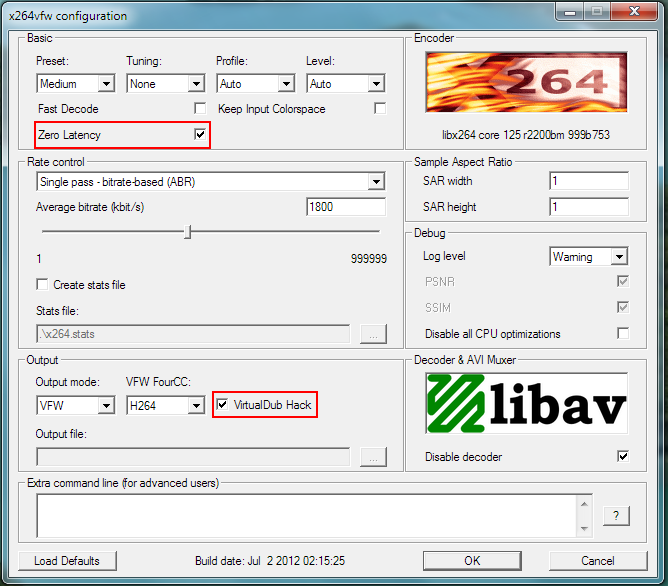
In x264 settings, it is important that VirtualDub Hack and
Zero Latency options are enabled.
Recommended ffdshow settings
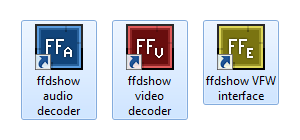
We have prepared a registry file which enables support for most video formats in ffdshow.
Simply download ffdshow.reg and double click to apply the settings in ffdshow.
If ffdshow crashes
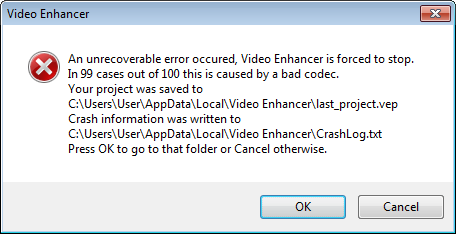
If Video Enhancer crashes with similar error message when trying to process certain files, it
may sometimes be because of unknown incompatibility with YV12 mode and ffdshow. Check the crash log,
and if you see ffdshow in the list of components, try the following.
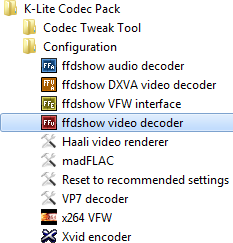
Open ffdshow video decoder configuration found in your start menu.
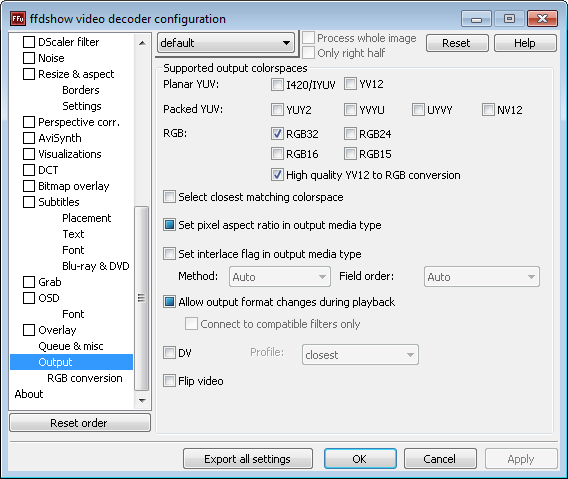
You may try to force RGB32 only in ffdshow.
To find the output settings, scroll down to the bottom at the left side.
Configure the ffdshow setting as above.
Try to process the problematic file again in Video Enhancer.
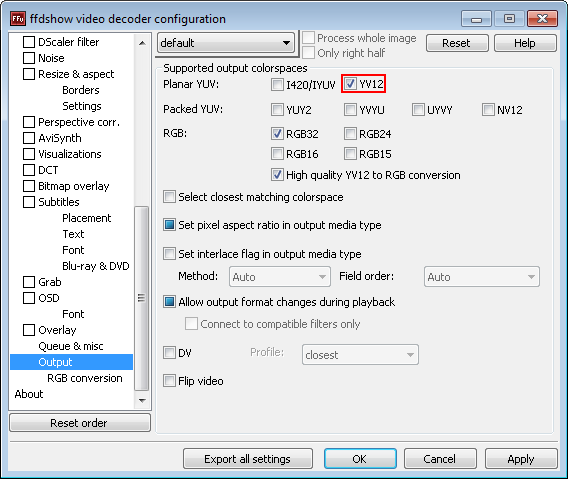
We recommend that you re-enable YV12 because of increased speed in Video Enhancer.
Only disable it when processing problematic files.
|